Settings
Configure SSO, ticketing integrations, and notification channels for your Kscope workspace.
Google SSO
Prerequisite: The user must first be added to the Team page using their Google email address.
Step 1: Enable Google SSO in Kscope
-
Navigate to Agent Hub > Settings
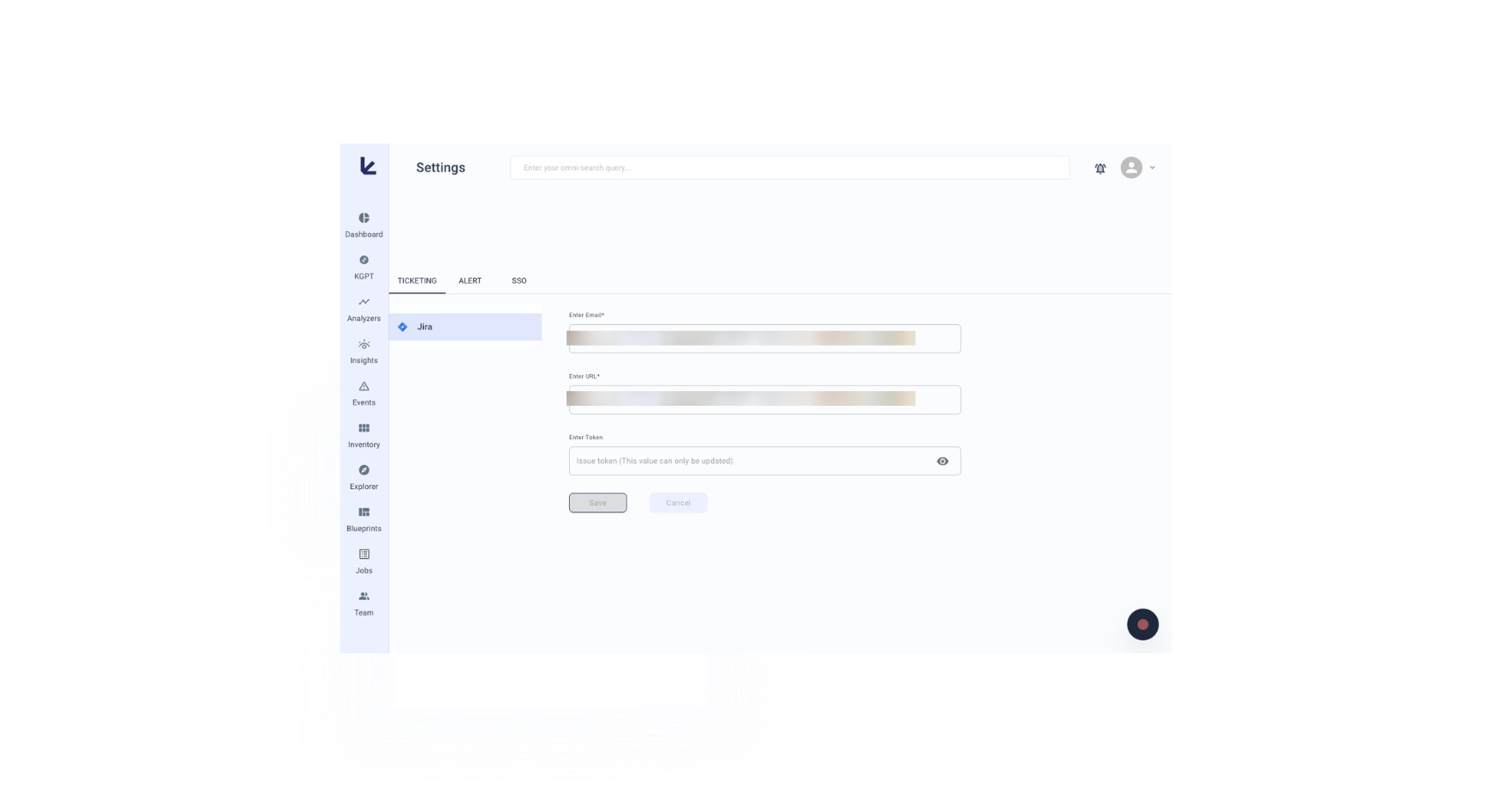
-
Go to SSO and click Enabled
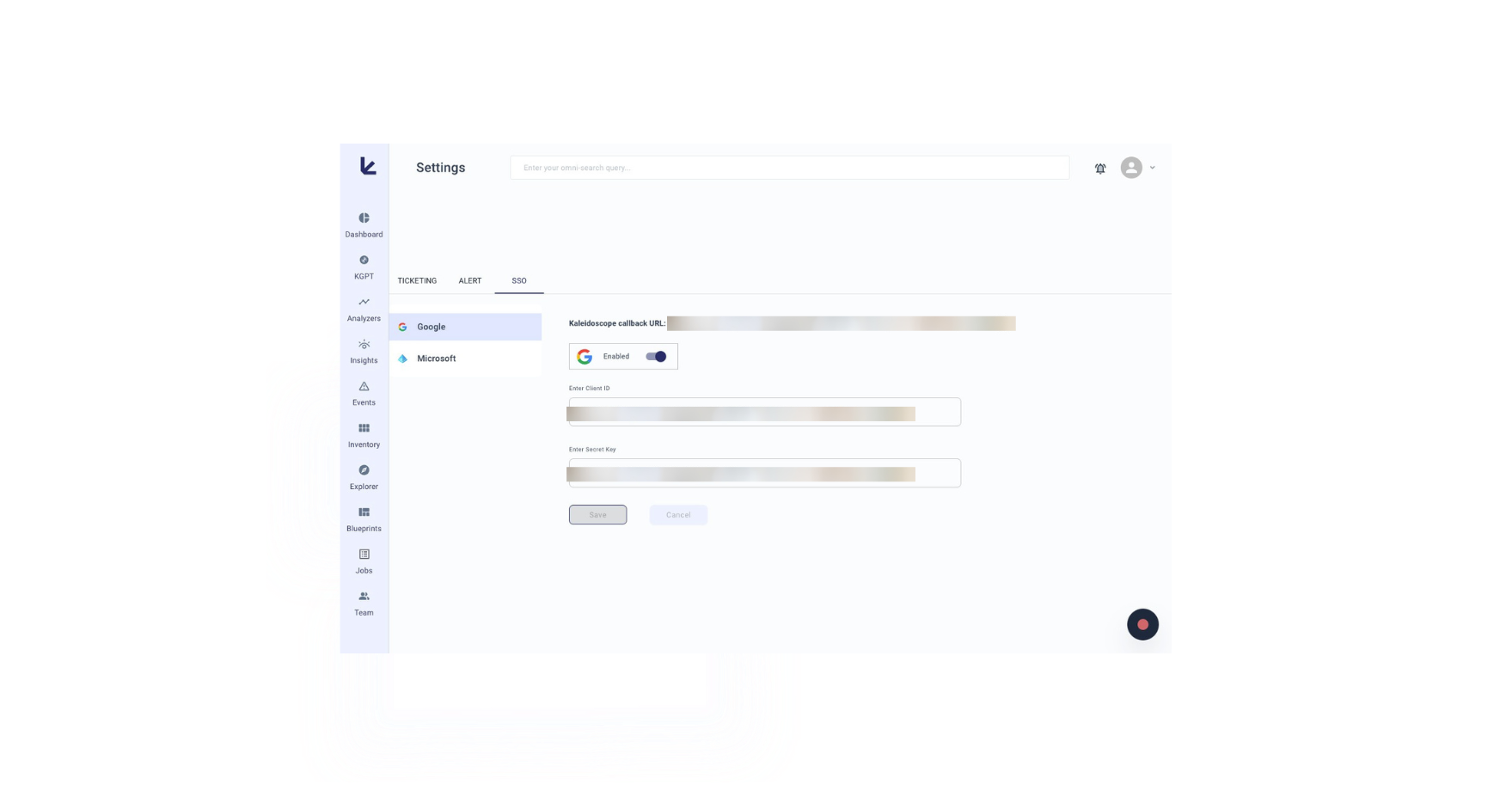
-
Copy the Kscope callback URL (click the copy icon)
Step 2: Create an OAuth Client ID in Google Cloud
-
In Google Cloud Console, go to APIs & Services > Credentials
-
Click CREATE CREDENTIALS > OAuth client ID
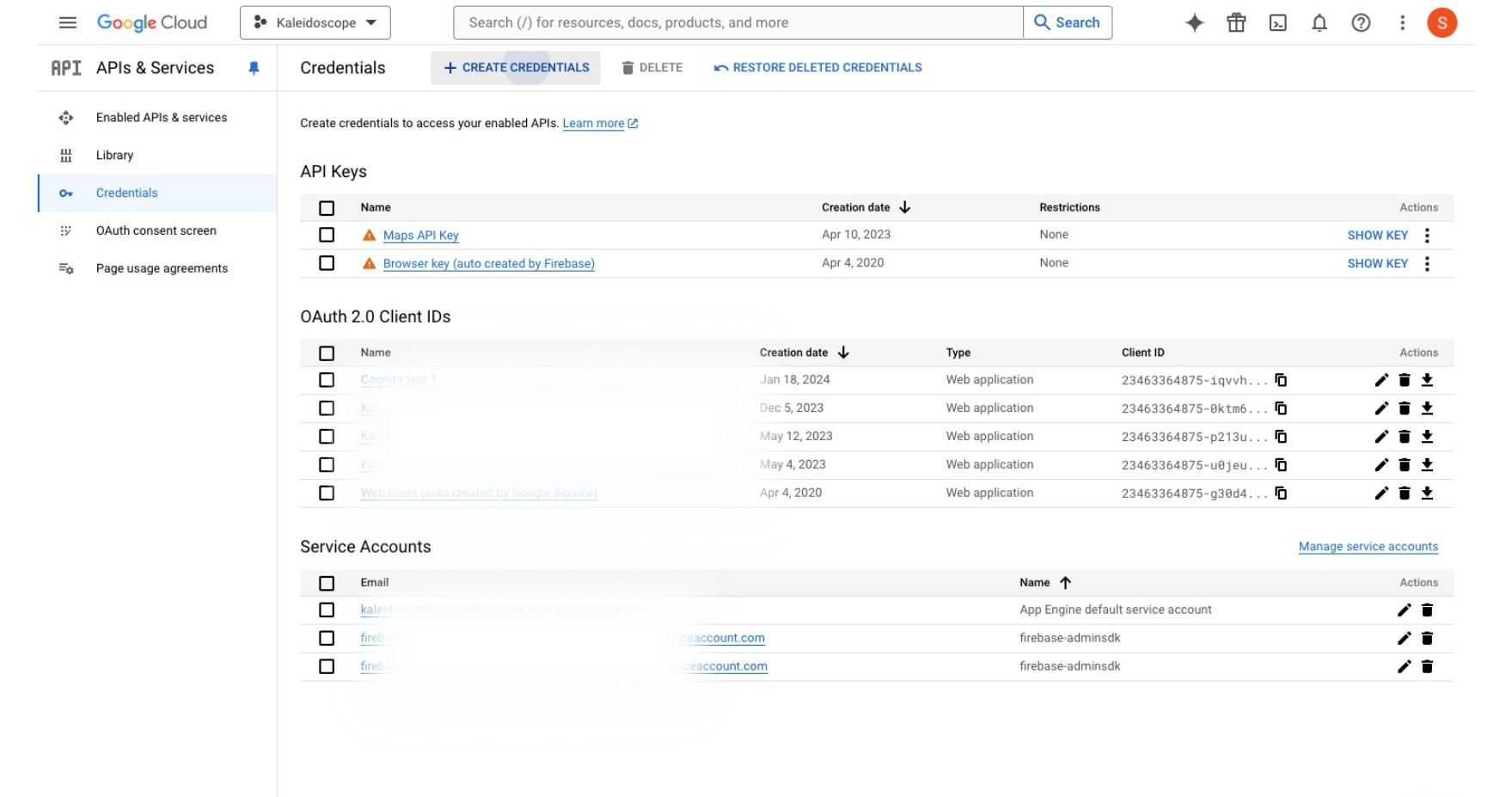
-
Select Web application as the Application type
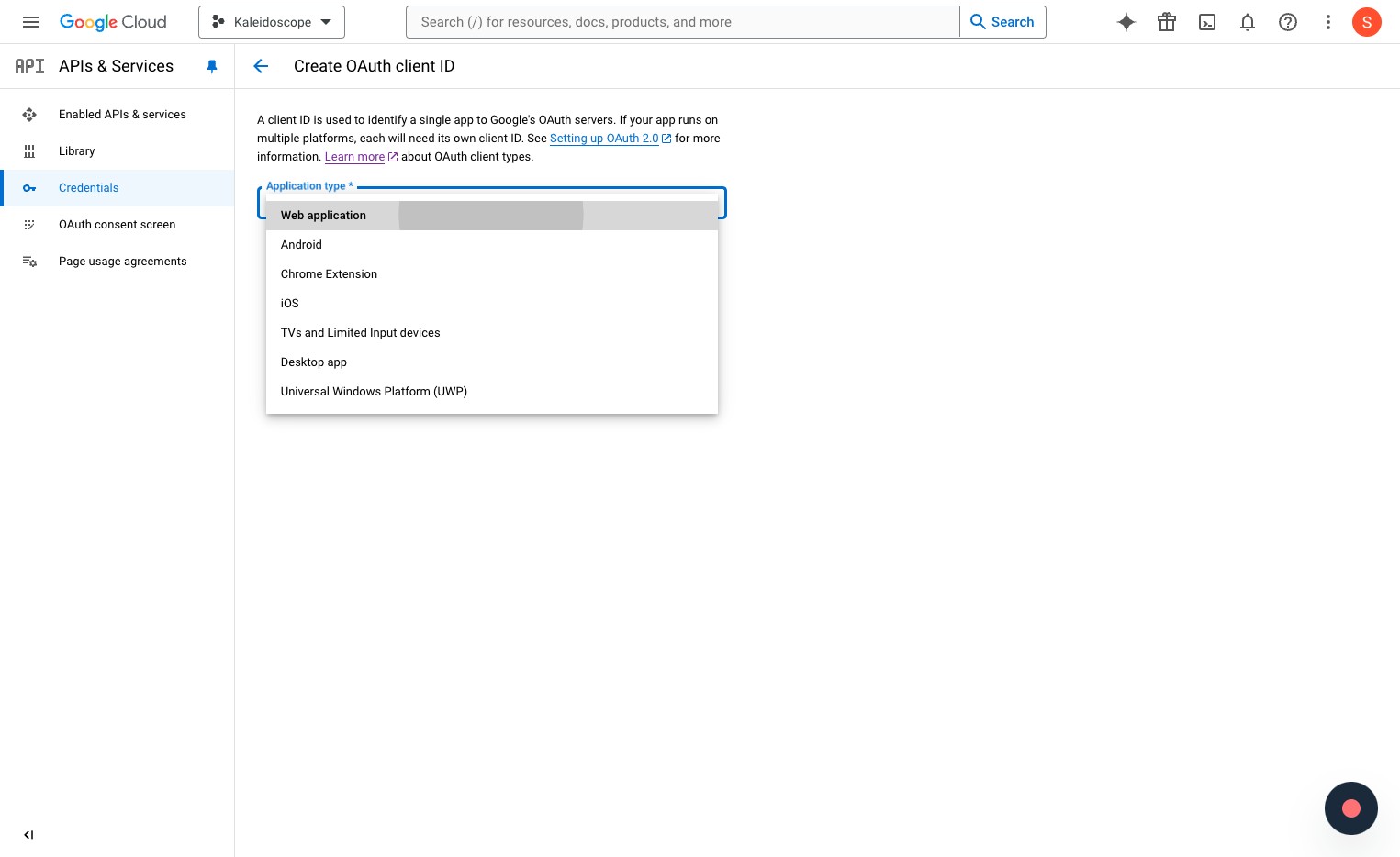
-
Name it (e.g.,
kscope-sso) -
Under Authorized redirect URIs, paste the Kscope callback URL
-
Under Authorized JavaScript origins, add
https://<your_tenant_id>.kscope.ai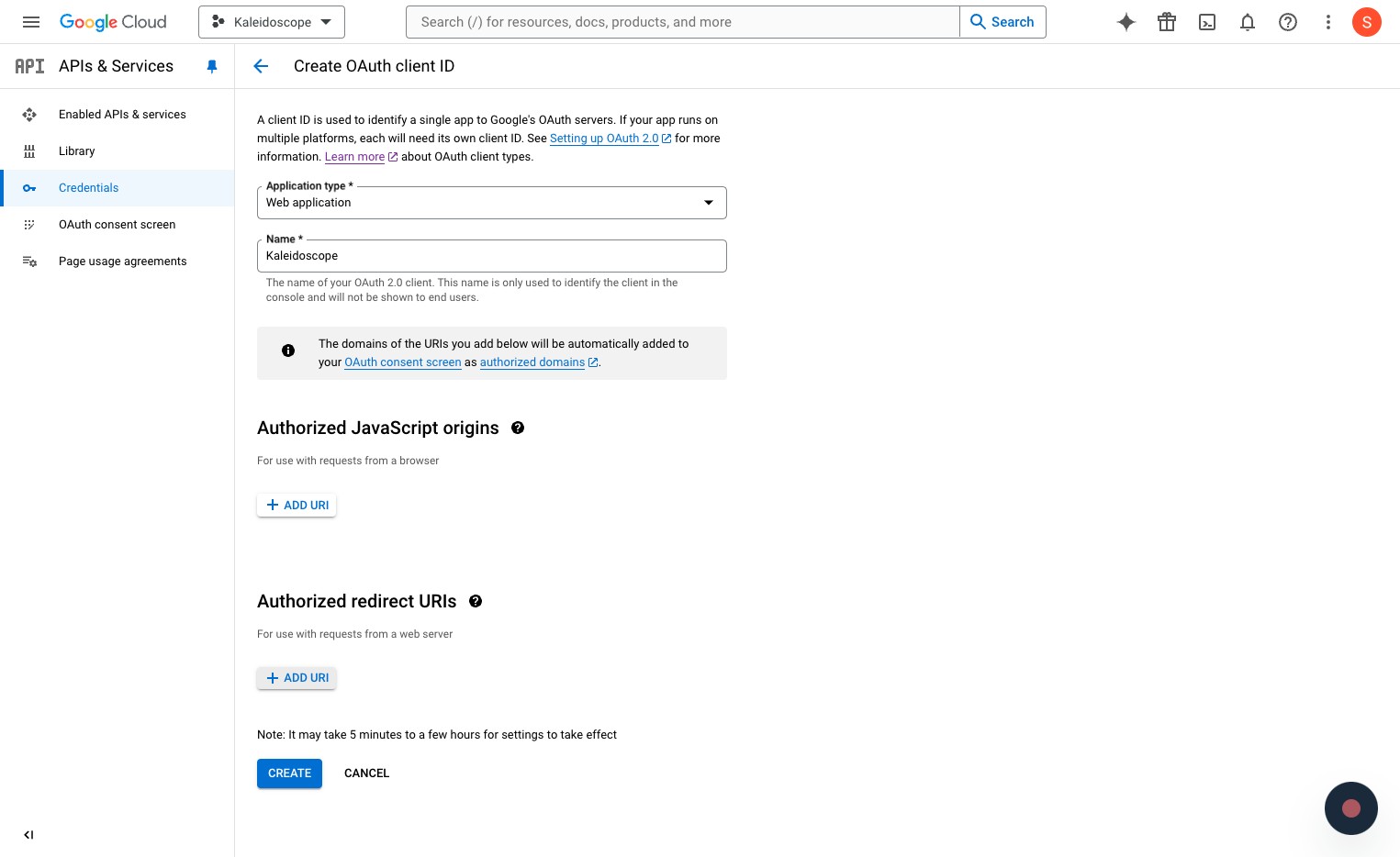
-
After creating, copy the Client ID and Client secret
Step 3: Add Credentials in Kscope
Go back to Kscope Settings and enter the Client ID and Client secret from Google Cloud.
Users can now log in with their Google credentials.
Microsoft SSO
Prerequisite: The user must first be added to the Team page using their Microsoft email address.
Step 1: Enable Microsoft SSO in Kscope
- Navigate to Agent Hub > Settings > SSO and click Enabled
- Copy the Kscope callback URL
Step 2: Register Application in Azure Portal
-
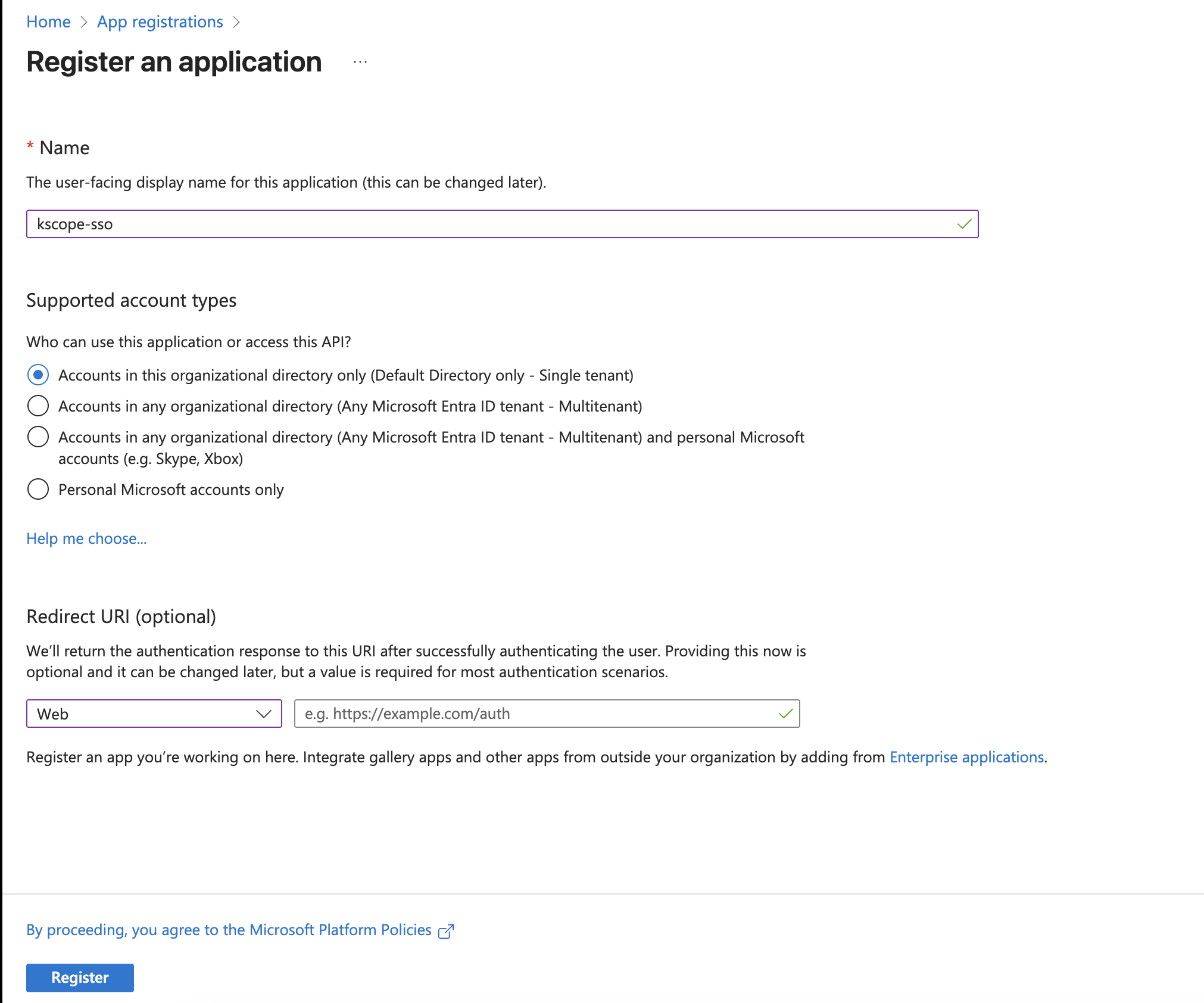
Go to App registrations
-
Click New registration, name it (e.g.,
kscope-sso) -
Keep default Supported Account types
-
For Redirect URI, select Web and paste the Kscope callback URL, then click Register
-
Copy the Directory (tenant) ID and Application (client) ID
-
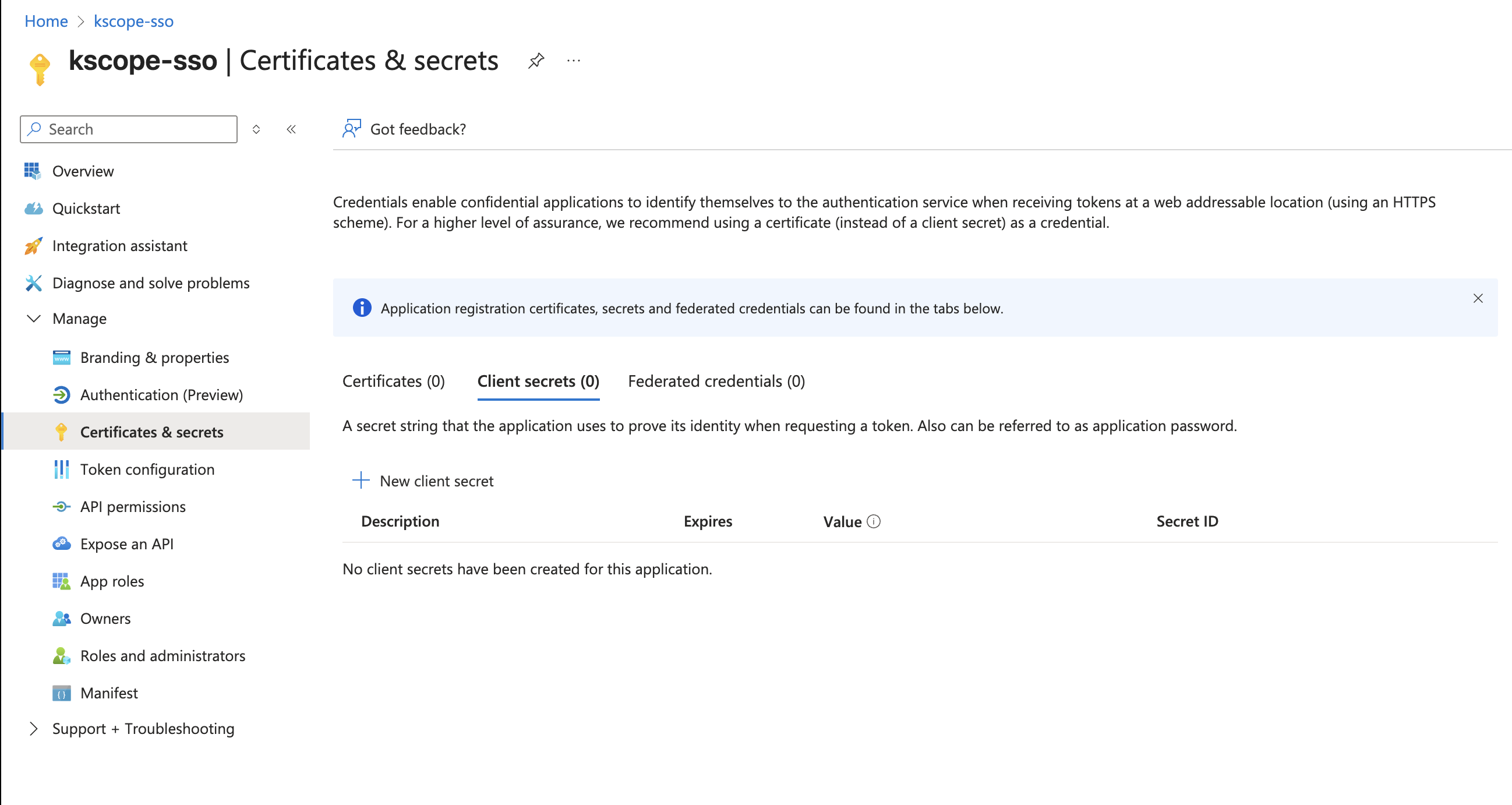
Click Add a certificate or secret > New client secret
-
Set description to "Used for Kscope SSO" and copy the secret Value
-
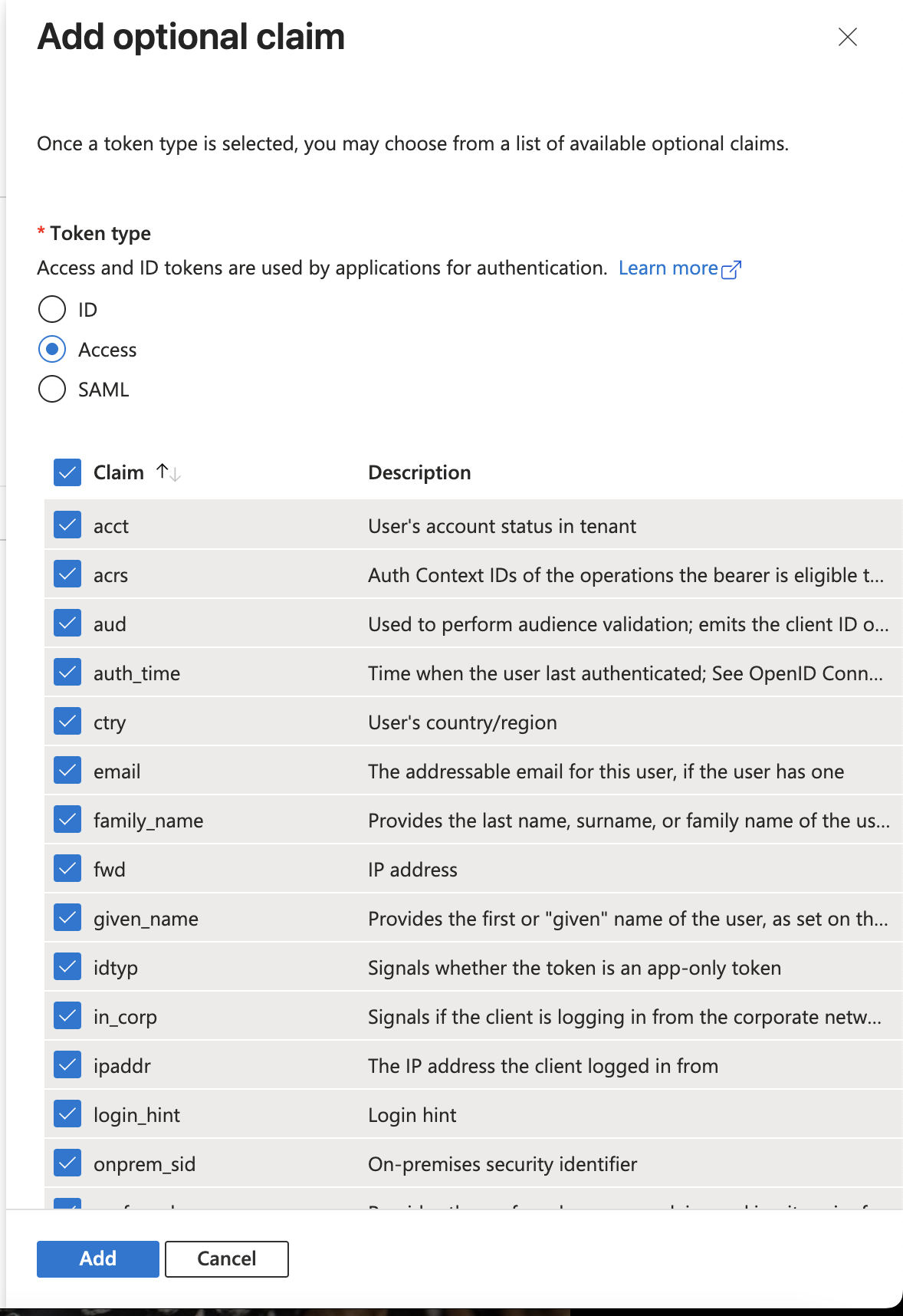
Go to Token configuration > Add optional claim
-
For all 3 types (ID, Access, SAML), select all claims
Step 3: Add Credentials in Kscope
Go back to Kscope Settings and enter the Tenant ID, Client ID, and Secret Key from Azure Portal.
Users can now log in with their Azure credentials.