Inventory
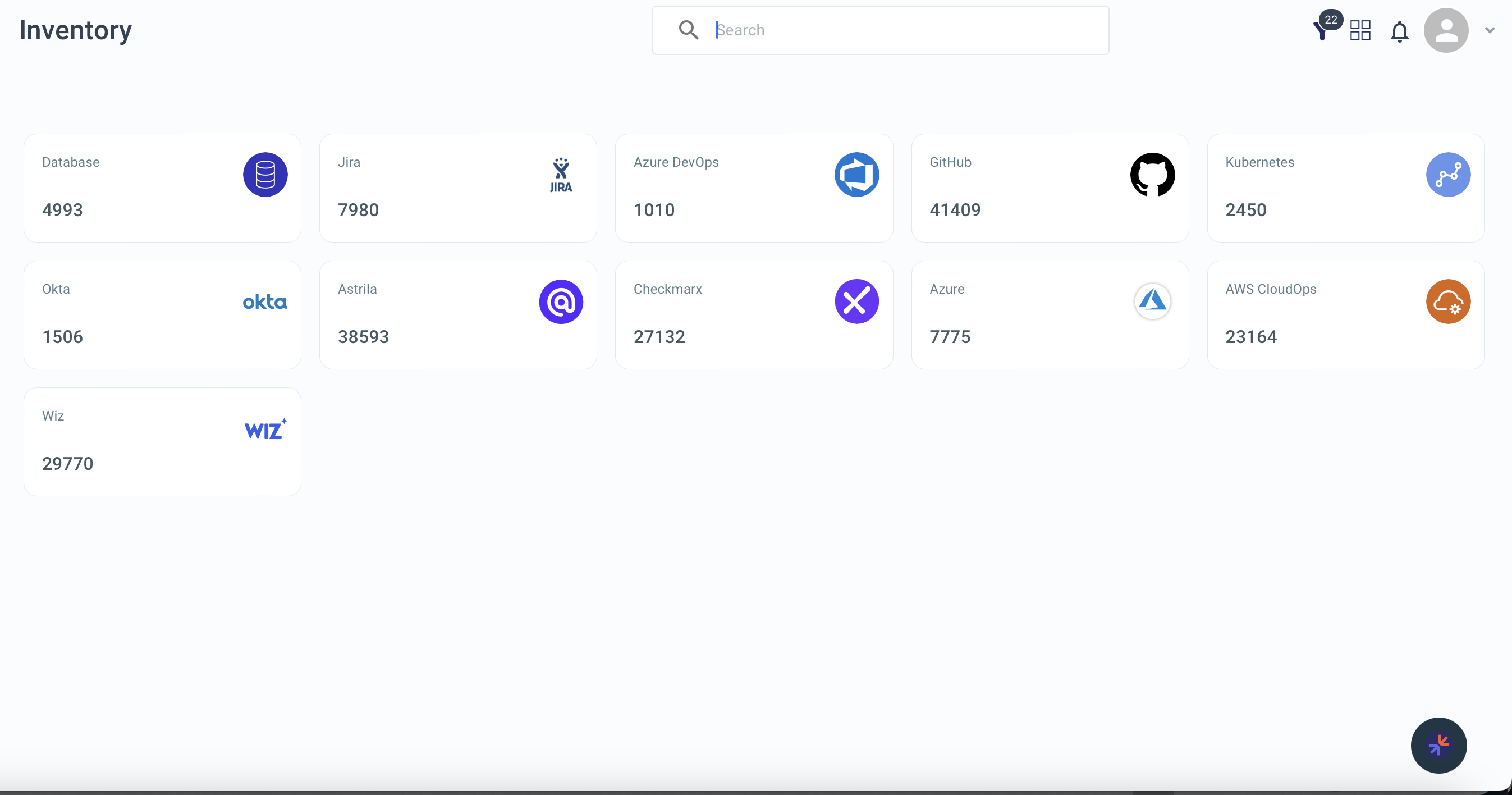
The Inventory page provides a unified view of all entities crawled from your data sources. It shows every asset, identity, and policy across code, cloud, and SaaS systems -- organized by Blueprint and drillable down to individual node properties.
Layout
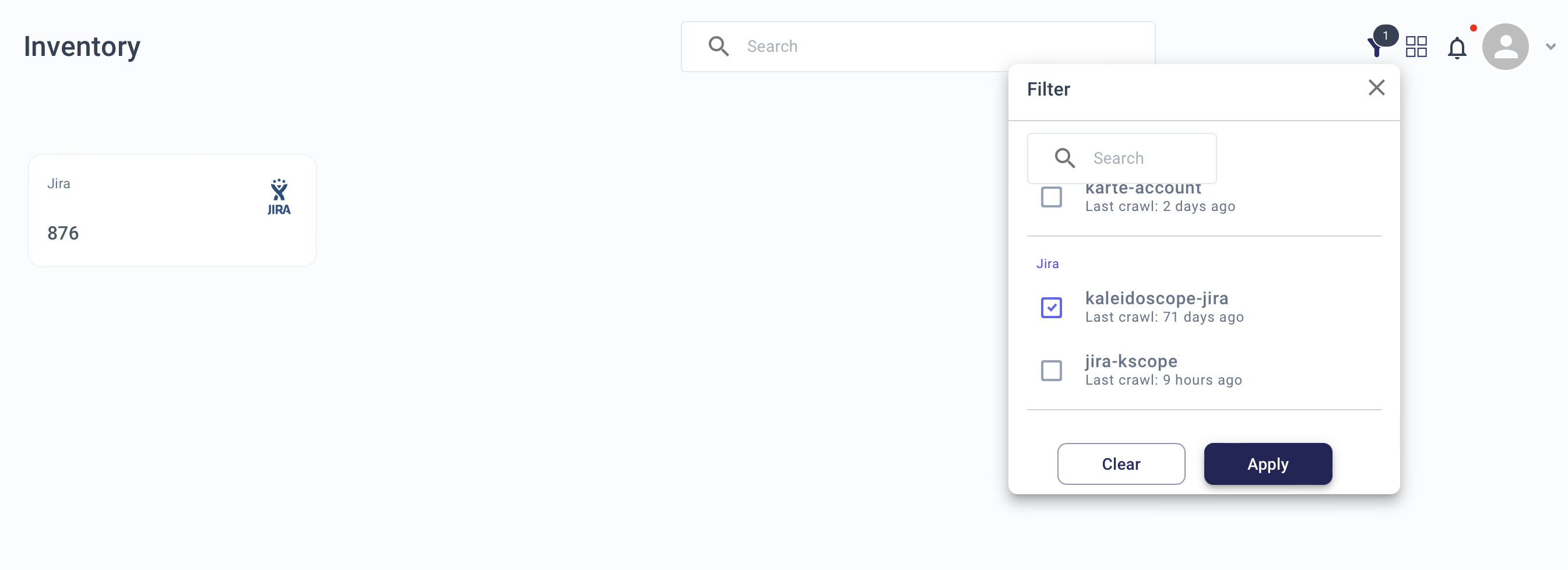
The page displays Blueprint cards in a grid, each showing:
- Blueprint name and icon
- Total inventory item count
Viewing Modes
| Mode | Best for |
|---|---|
| Grid View (default) | Scanning Blueprint cards and their item counts |
| List View | Tabular comparison of inventory across Blueprints |
Toggle between views using the button at the top right.
Hierarchical Drill-Down
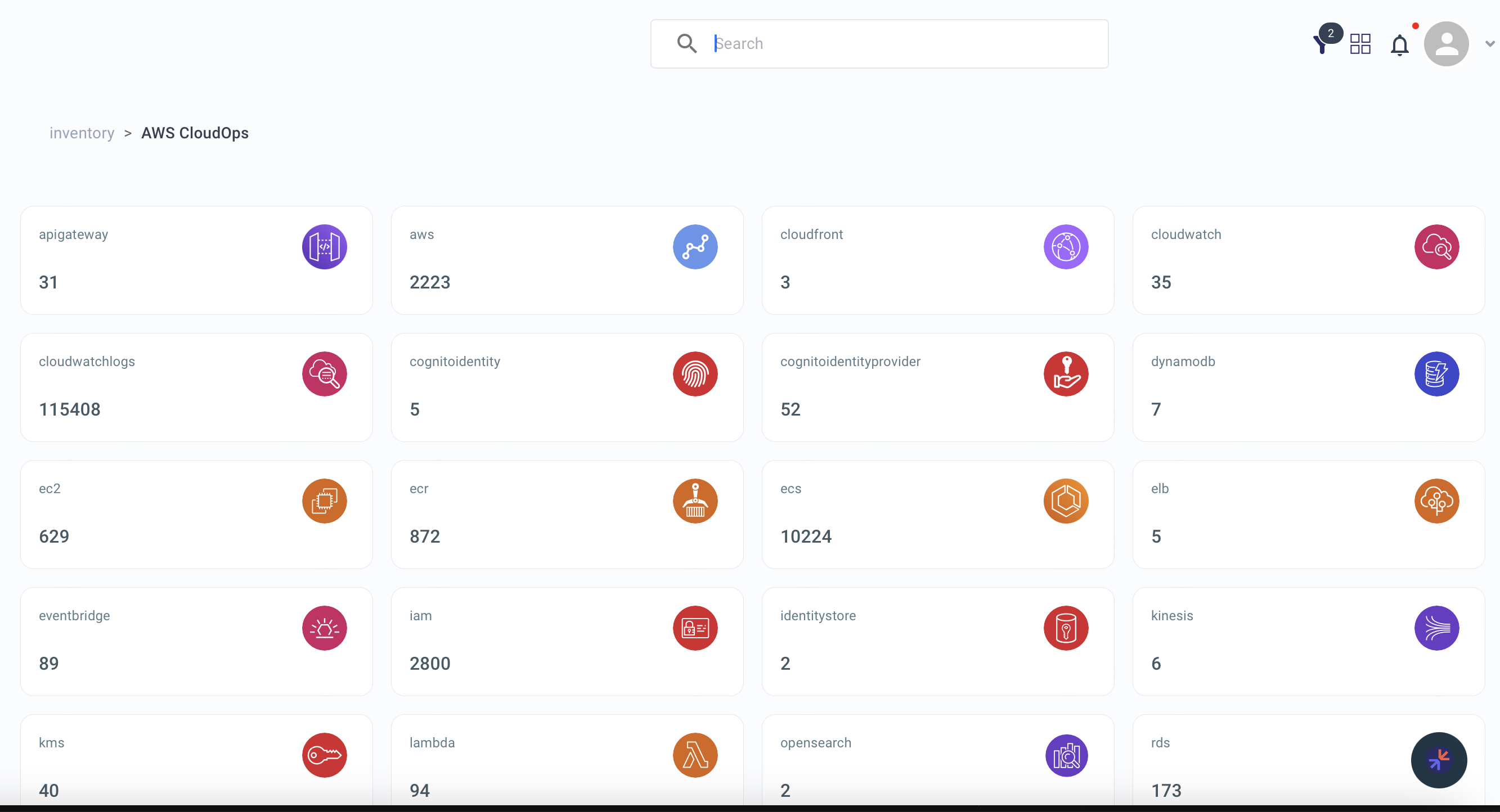
Click any Blueprint card to drill through three levels of detail:
Level 1 -- Top-level nodes of a Blueprint (overview of major elements)
Level 2 -- Sub-nodes with counts, showing relationships and dependencies

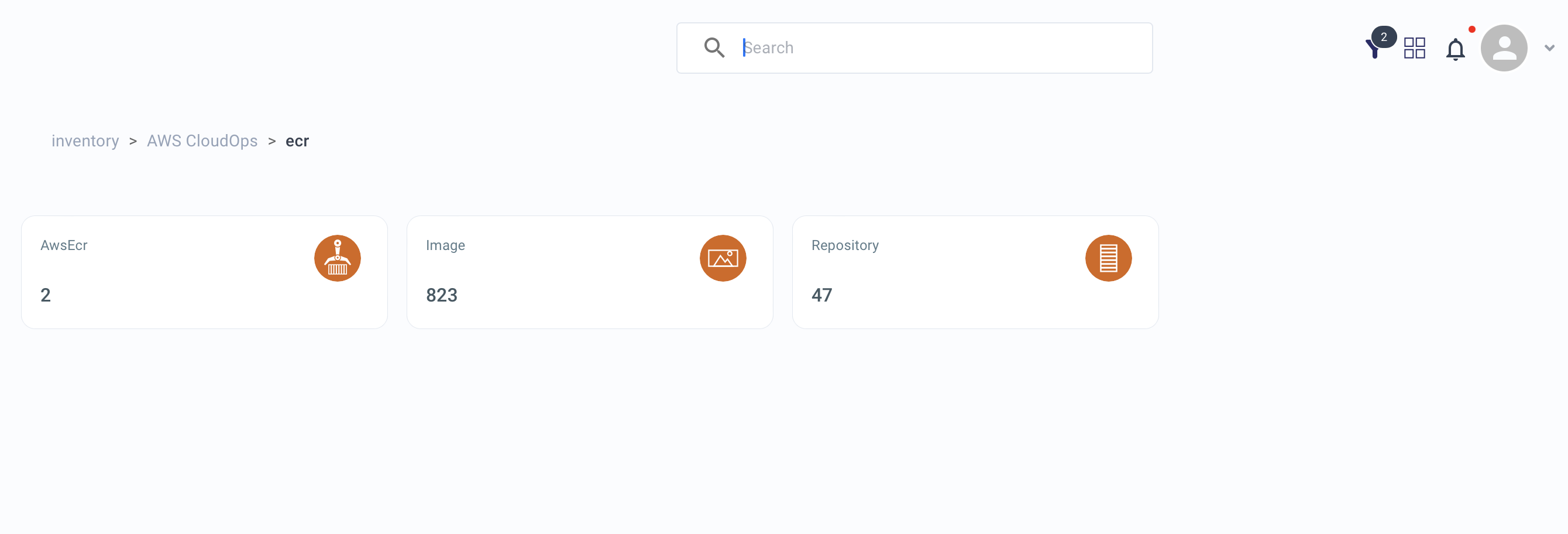
Level 3 -- Detailed nodes with the option to navigate to Explorer for full graph analysis of node properties and connected edges
Filtering
Account Filter -- Filter inventory by the accounts associated with your Blueprints. Useful when managing multiple environments.
Quick Start
- Open Inventory and use the Account Filter to narrow to a specific account
- Click a Blueprint card to drill into Level 1 nodes
- Continue drilling to find specific assets
- At Level 3, click through to Explorer for full graph analysis