KAI (Korweave Augmented Insights)
KAI is Kscope's GenAI-powered assistant. Ask security and operational questions in plain English and get instant, context-aware answers drawn from your context graph -- no scripting, SQL, or manual correlation needed.
KAI uses Retrieval-Augmented Generation (RAG) against your organization's actual asset graph and security data. All queries stay within your security controls.
What KAI Can Answer
| Question | Why it matters |
|---|---|
| Which S3 buckets are publicly accessible? | Detect misconfigured storage that may lead to data leaks |
| Show me business-critical apps with critical CVEs unpatched for 30+ days | Prioritize remediation by business impact |
| List all internet-facing assets with high-severity vulnerabilities | Focus defenses on the externally visible attack surface |
| Are any Kubernetes clusters running outdated images with known CVEs? | Ensure container environments aren't vulnerable |
| Which third-party dependencies have exploitable vulnerabilities? | Reduce software supply chain risk |
| Do any IAM roles have excessive permissions in production? | Mitigate privilege escalation risk |
| What are the top 5 exploitable misconfigurations in our cloud estate? | Prioritize fixes that reduce the biggest risks |
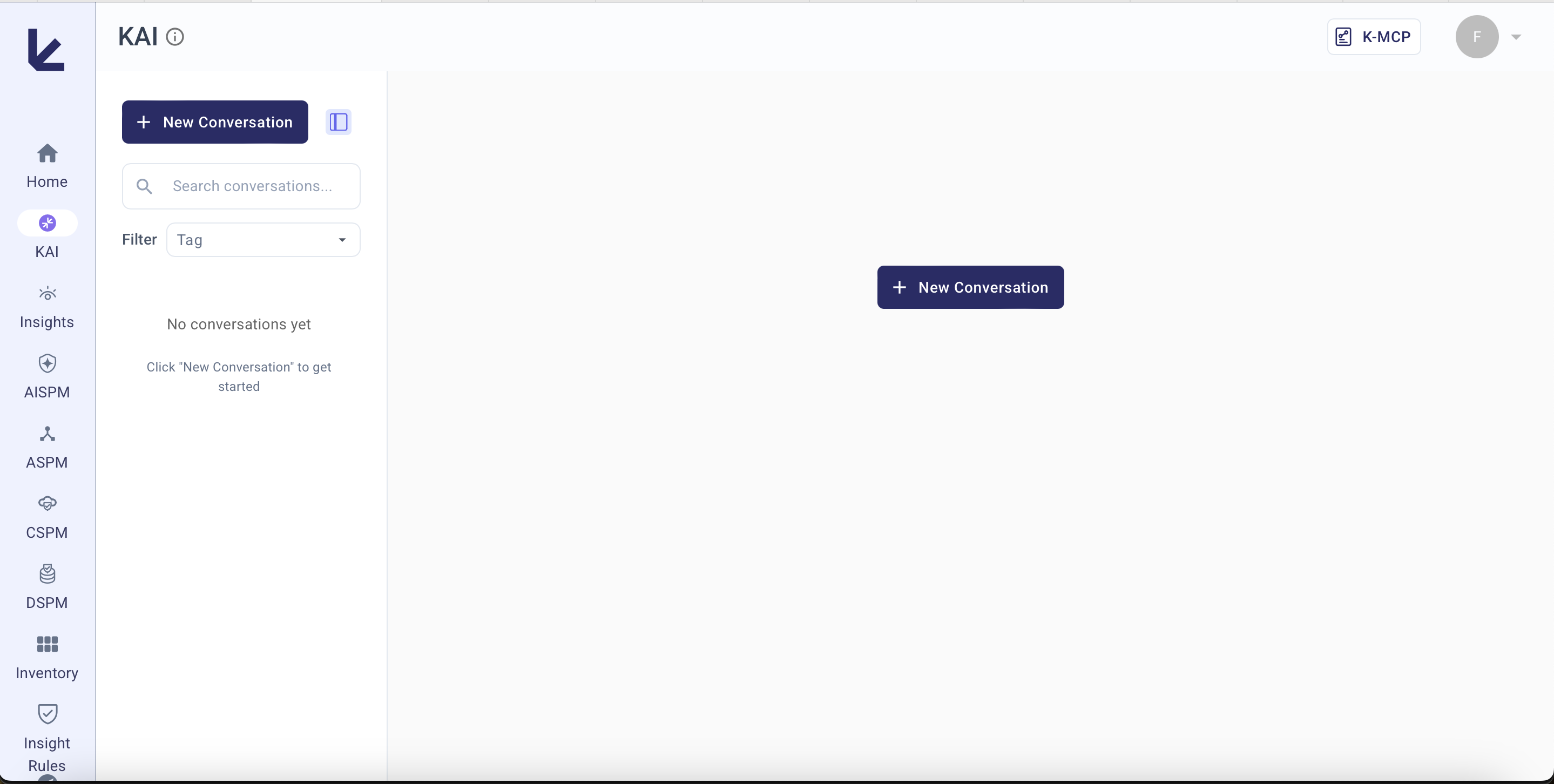
Layout
- Sample Questions -- Pre-defined clickable queries to get started immediately
- Input Bar -- Type any question in natural language
- Session History -- Browse and continue past conversations (sidebar)
- Send Button -- Submit your query
Response Types
KAI returns answers in the format that best fits the data:
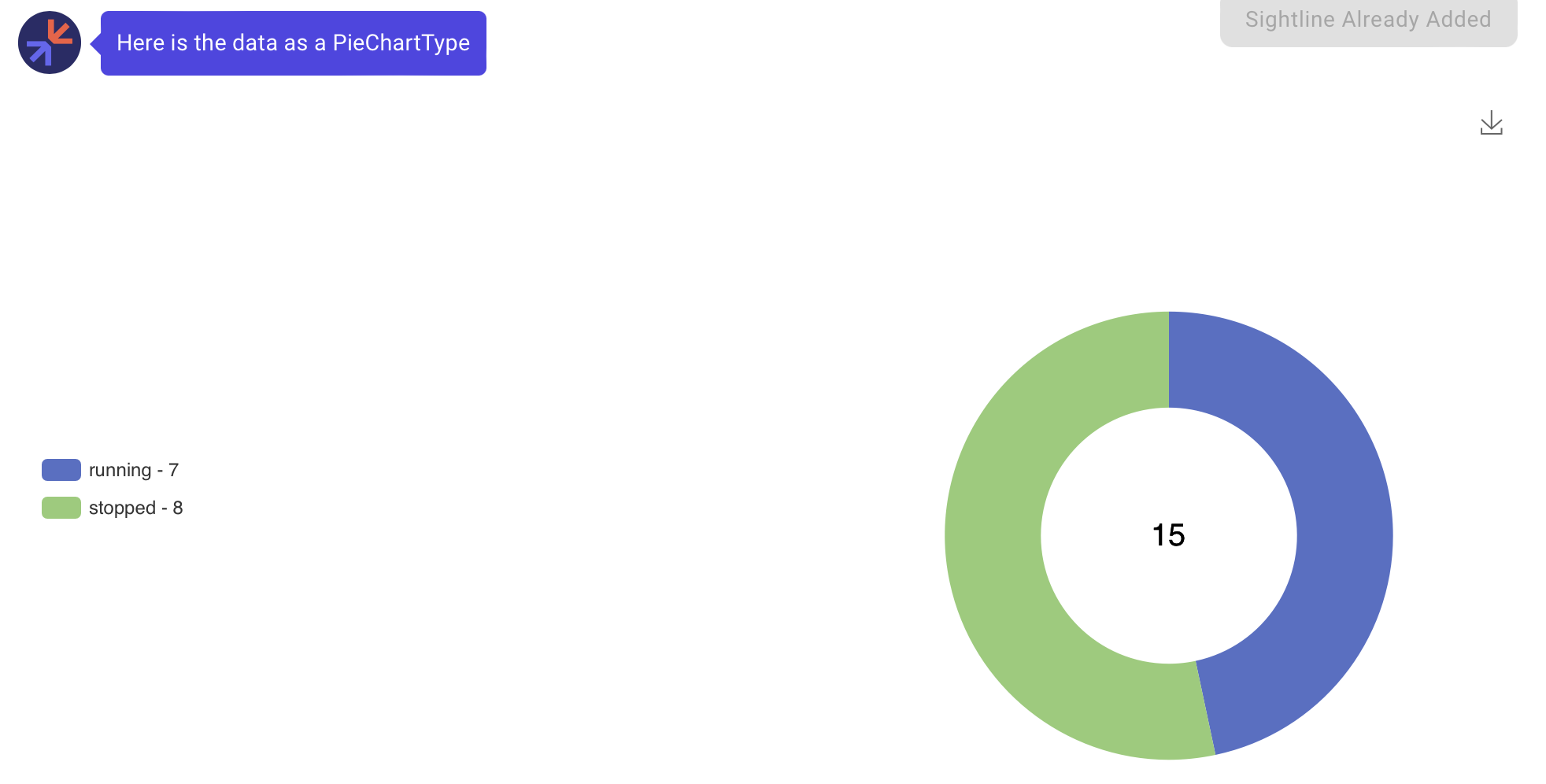
Chart response -- "Show me EC2 Instance State Distribution as a pie chart"
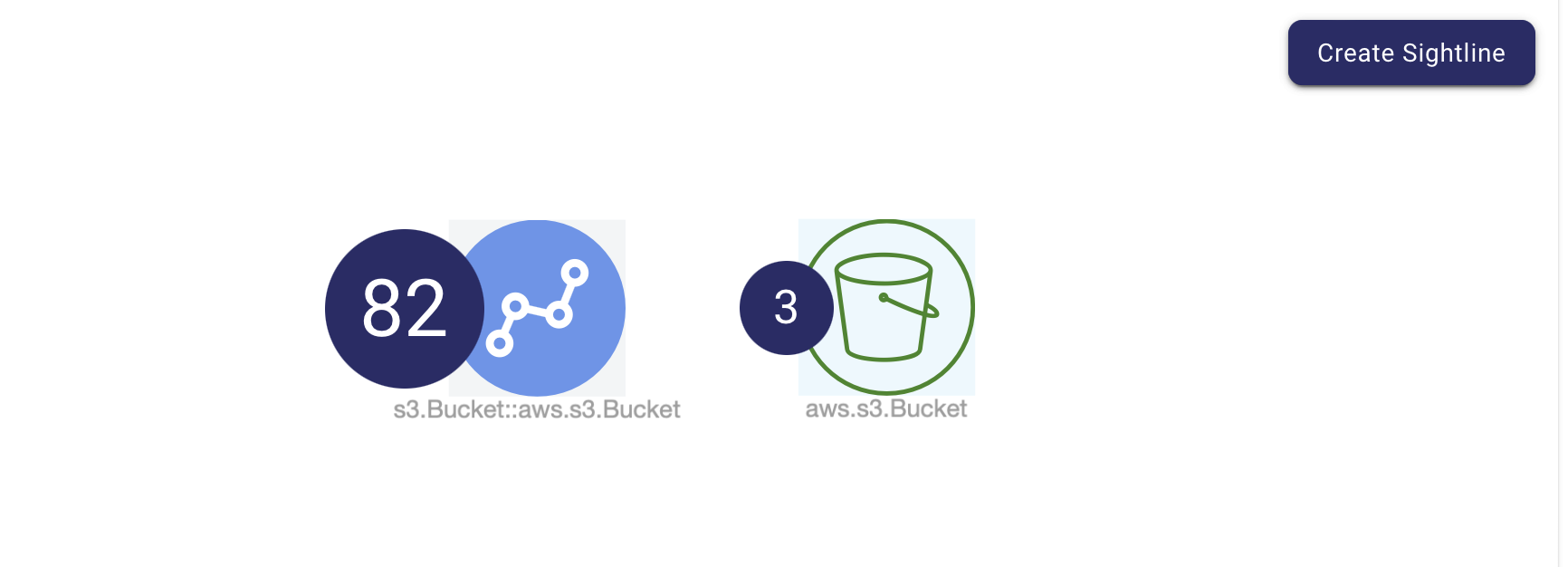
Graph response -- "Show me S3 Buckets"
Text response -- "What are the names of S3 Buckets"

Saving Responses
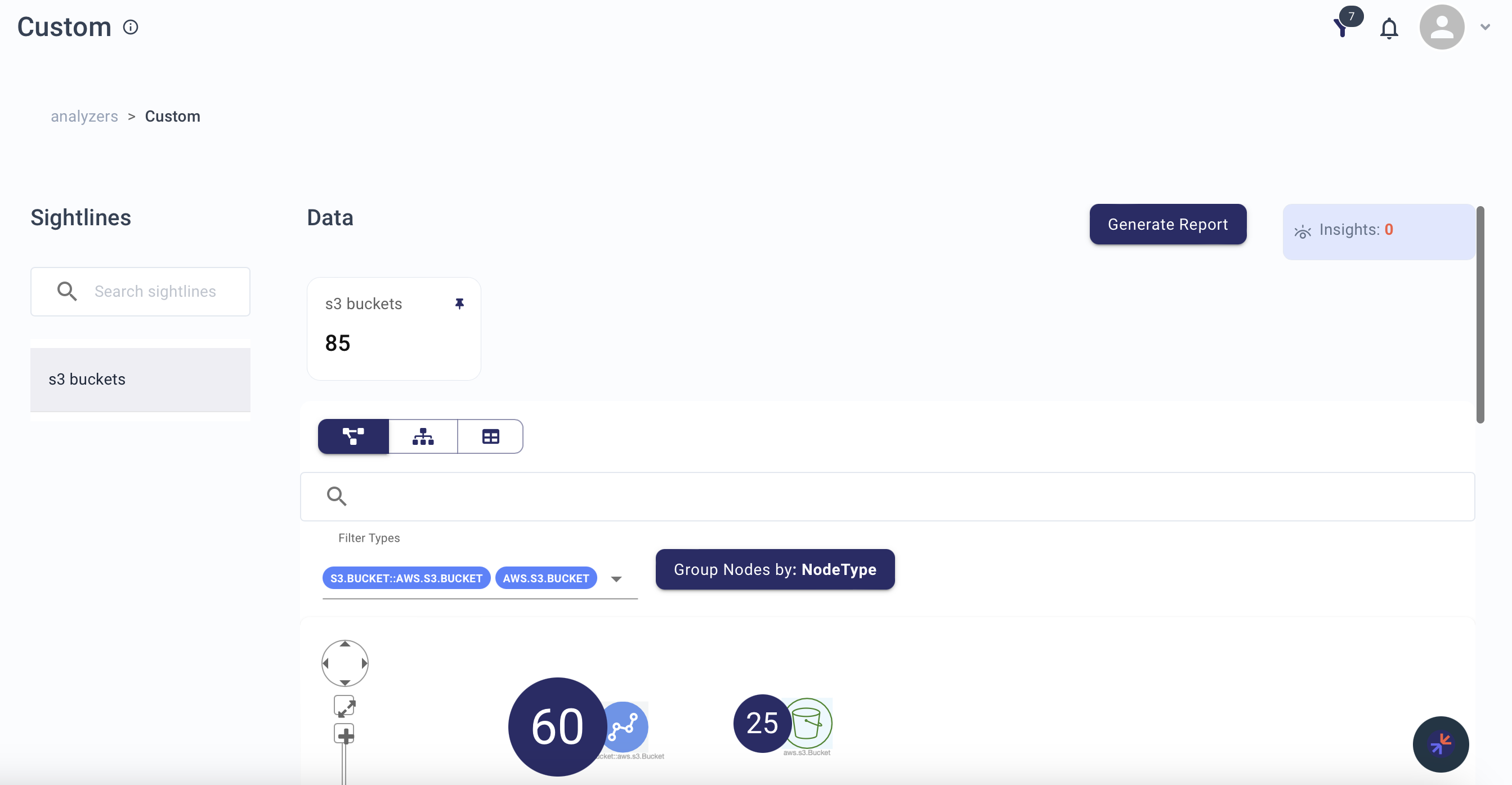
Save any chart or graph to a Custom Analyzer as a Sightline:
- Click Create Sightline on the response
- Fill in the name and details
- Access it later from your Custom Analyzer
Tips
- Be specific -- "What are the properties of node A?" works better than "What is the node data?"
- Start with sample questions if you're unsure how to phrase a query
- Use follow-ups -- KAI refines answers based on conversation context
- Save important findings -- Use Sightlines to organize insights for later
K-MCP (Kscope Model Context Protocol)
K-MCP extends KAI's capabilities to external AI tools and IDE assistants through the Model Context Protocol (MCP). It exposes your Kscope context graph as an MCP server, allowing AI coding assistants and security tools to query your security posture directly.
What K-MCP Enables
| Capability | Description |
|---|---|
| IDE integration | Query your security posture from AI assistants in VS Code, JetBrains, or other MCP-compatible editors |
| Context-aware development | Get real-time security context about the services you're working on without leaving your editor |
| Automated triage | Feed security findings into AI workflows that can prioritize and suggest remediations |
| Custom tooling | Build MCP clients that integrate Kscope data into your internal security automation |
Connection Details
To view your K-MCP connection details, click the MCP icon next to New Conversation on the KAI page. The dialog shows:
| Attribute | Description |
|---|---|
| K-MCP URL | The SSE endpoint for your MCP client to connect to (e.g., https://api.<tenant>.kscope.ai/k-mcp/sse) |
| Domain URL | The authentication domain for OAuth token exchange |
| Scope | Granted permissions -- k-mcp/read, ke/view_analyzers, ke/acknowledge_alert, ke/get_account |
| Client ID | The OAuth client ID for authenticating your MCP client |
| Client Secret | The OAuth client secret -- treat this as a password |
| Grant Type | client_credentials -- use OAuth 2.0 client credentials flow |
Connecting an MCP Client
- Open the K-MCP connection details dialog from the KAI page
- Copy the K-MCP URL, Client ID, and Client Secret
- Configure your MCP-compatible client with these credentials using the
client_credentialsOAuth flow against the Domain URL - Connect to the K-MCP URL (SSE transport)
- Start querying your security posture from your preferred tool
Example: Claude Desktop / Claude Code
Add to your MCP configuration:
{
  "mcpServers": {
    "kscope": {
      "url": "https://api.<tenant>.kscope.ai/k-mcp/sse",
      "headers": {
        "Authorization": "Bearer <access_token>"
      }
    }
  }
}